Manage users, invitations, sessions, and login activity in your organization.
Last updated: 2026-01-26
Where to find it: Users, Invitations, Sessions, and Login Attempts (left sidebar)
Who can use it: Admin roles with User Management permissions
Prerequisites: Access to the correct tenant or organization
Help link: /user-management
How to do it
Invite a new user
- Go to Users → Invite User.
- Enter the user's email address.
- Select a role from the dropdown.
- (Optional) Add a personal message.
- Click Send Invitation.
Edit a user
- Go to Users → Find the user.
- Click Edit (or select the user row).
- Update details or roles.
- Click Save Changes.
Assign a role
- Go to Users → Find the user.
- Click Edit.
- In Roles, add or remove roles.
- Click Save Changes.
Deactivate a user
- Go to Users → Find the user.
- Open the actions menu (⋮).
- Select Deactivate and confirm.
Revoke a session
- Go to Sessions.
- Find the session to revoke.
- Click Revoke.
Resend an invitation
- Go to Invitations.
- Find the pending invitation.
- Click Resend.
What you'll see (fields/columns)
Users list
| Column | Type | Description |
|---|
| Name | Text | User's display name |
| Email | Email | User's email address |
| Role | Badge | Assigned role(s) |
| Status | Badge | Active, Inactive, or Pending |
| Last Login | Timestamp | When the user last signed in |
| Actions | Menu | Edit, Deactivate, Delete |
Filtering and search
| Filter | Type | Description |
|---|
| Search | Text | Find users by name or email |
| Status | Select | Filter by Active, Inactive, or Pending |
| Role | Select | Filter by assigned role |
User profiles
User profiles store personal and contact details for each user. For profile editing, see User Profiles.
Invitations
| Field | Type | Description |
|---|
| Email | Email | Invitee's email address |
| Role | Select | Role to assign on acceptance |
| Message | Text | Optional personal message |
| Expires | Timestamp | When the invitation expires |
Invitation statuses
| Status | Description |
|---|
| Pending | Awaiting acceptance |
| Accepted | User completed registration |
| Declined | User declined the invitation |
| Expired | Past expiration date |
| Cancelled | Revoked by administrator |
Sessions
| Column | Type | Description |
|---|
| User | Text | User's name |
| Device | Text | Browser and operating system |
| IP Address | Text | Connection IP address |
| Started | Timestamp | When the session began |
| Last Active | Timestamp | Most recent activity |
| Actions | Button | Revoke session |
Login attempts
| Column | Type | Description |
|---|
| Timestamp | Timestamp | When the attempt occurred |
| IP Address | Text | Source IP address |
| Status | Badge | Success or Failed |
| Reason | Text | Failure reason (if applicable) |
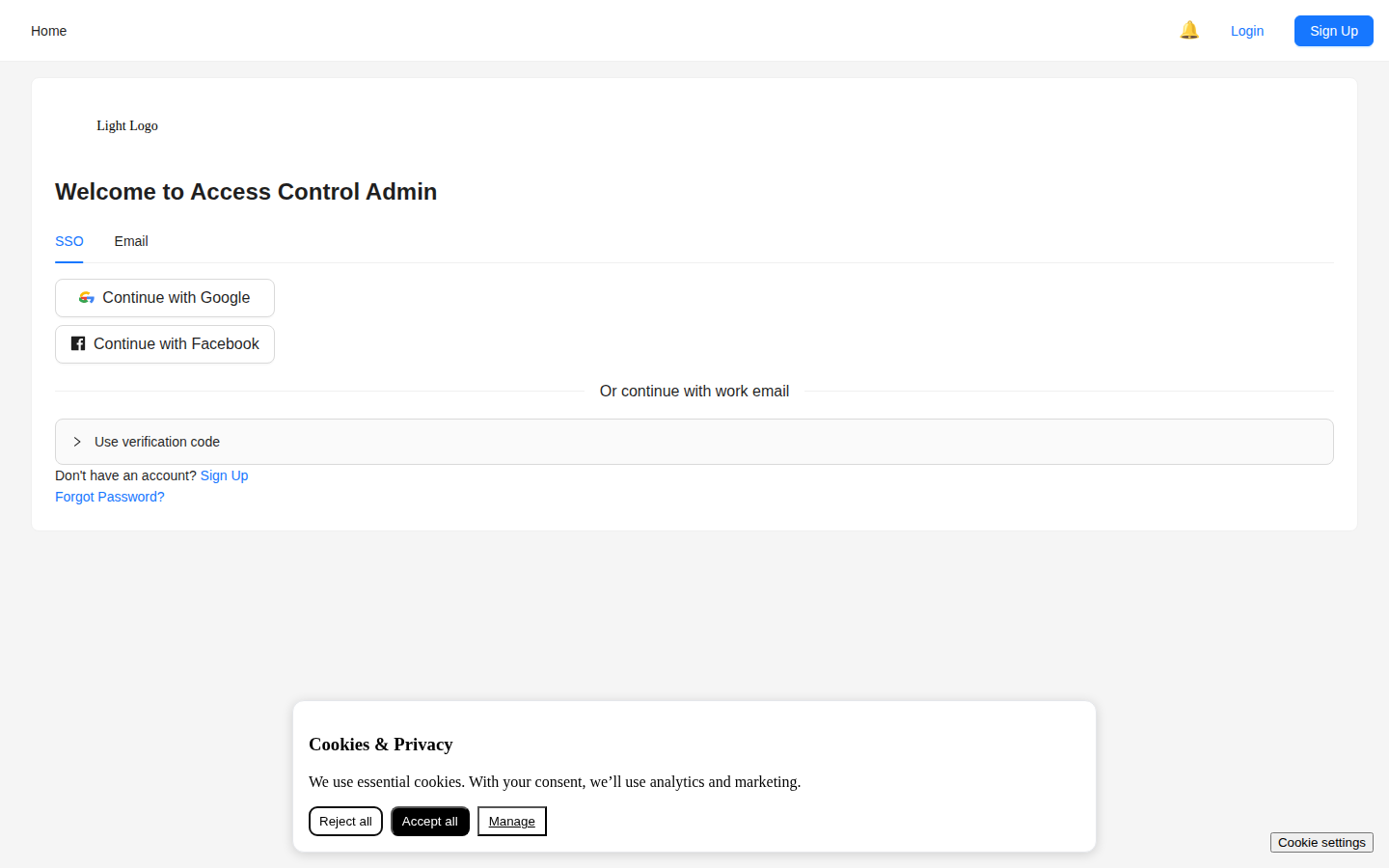
Screenshot / Callout
Expected outcome
- Users receive invitations and appear in the list with the correct status.
- Role changes take effect after saving.
- Revoked sessions end on the next refresh.
Troubleshooting
- User not receiving invitation? Check spam folder. Verify email address is correct. Try resending.
- Can't edit a user? You may not have the required permissions. Contact your administrator.
- User shows as Pending? They haven't accepted their invitation yet.
- Session won't revoke? Refresh the page and try again.